
Overview
When packaging applications, background processes, system updates, and other OS-level activities can be captured by snapshotting tools, leading to "dirty" packages that contain unnecessary changes. This tool aims to create a cleaner, quieter environment by applying a series of configurable system changes.
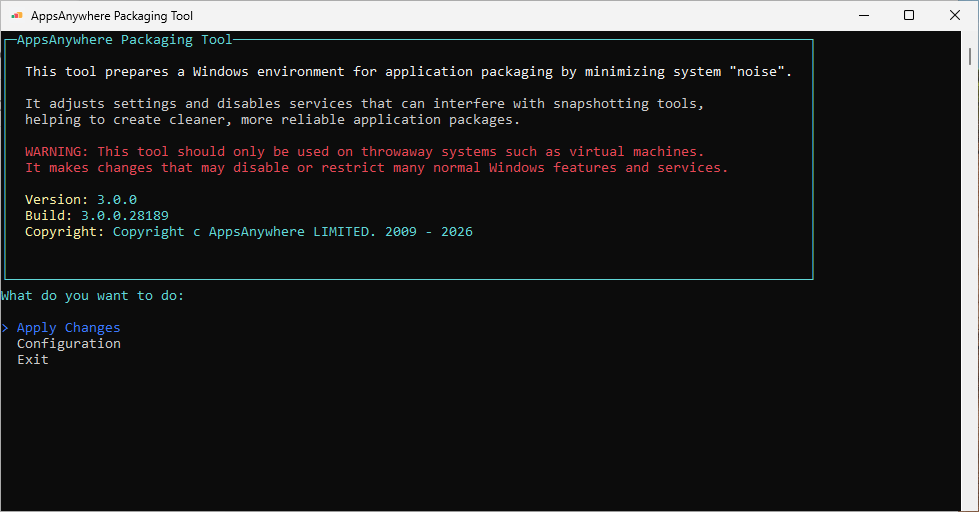
Table of Contents
Tool Download
Easier, faster Packaging
Using this tool can greatly reduce the amount of noise captured during packaging, allowing cleaner packages to be created faster.
Features & Benefits
The AppsAnywhere Packaging Tool 3.0 has many advantages over its predecessor, and is fully up to date with the latest version of Windows 11.
Silent Mode
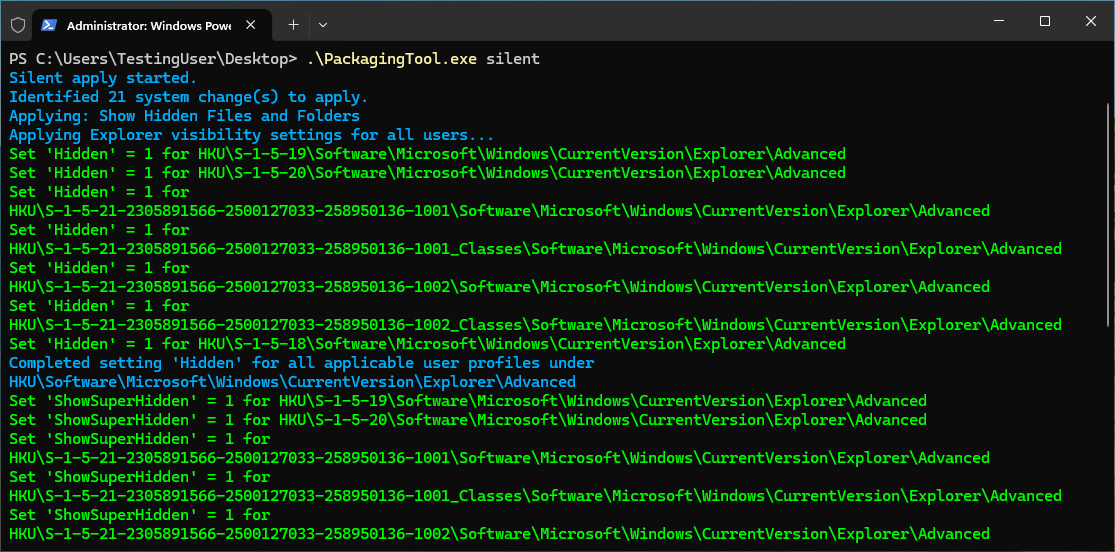
The application can run silently requiring no user interaction. The tool is opened in this mode by starting the application with the silent argument. When using this mode a preset config.json can be used to apply changes from a configuration, allowing you to fully customize what actions will take place.
Comprehensive Logging
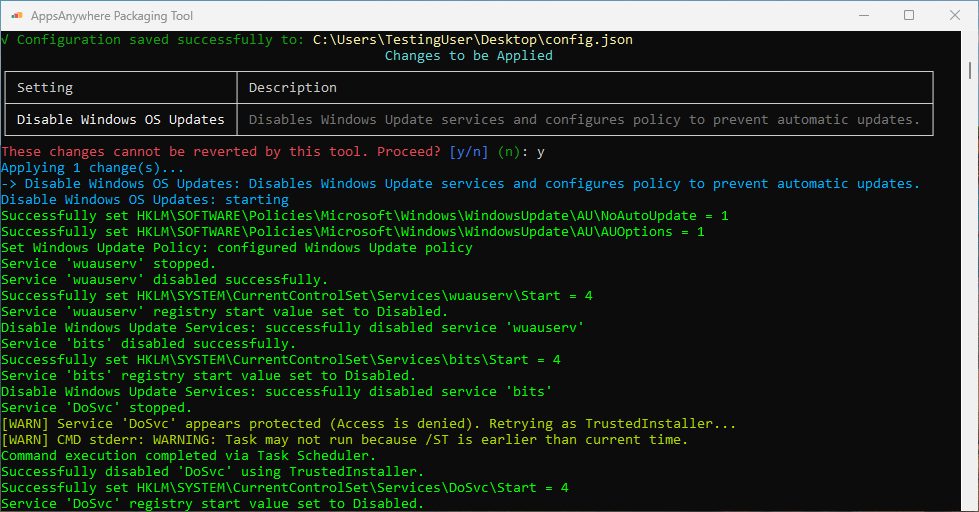
The tool provides a log of everything it is doing in the console window, this makes it easy to see what actions are taking place, and find unexpected issues.
Configurable
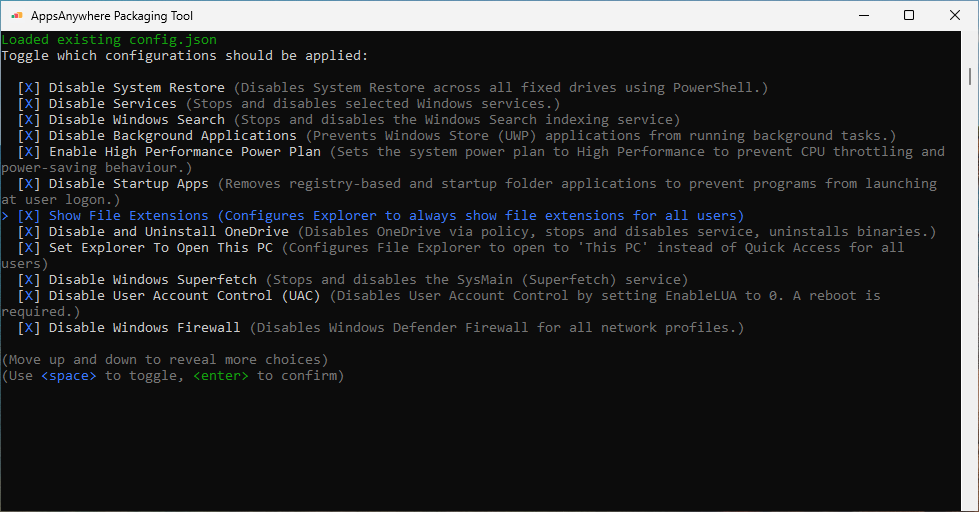
The packaging tool can be configured to run any different combination of actions through the UI. This makes it easy to carry out only the exact changes that are required for your use case.
Optional Config Download
The tool is designed to have a default configuration with recommended settings. This configuration has been created to reduce as much noise as possible without causing unexpected issues. This configuration will work best on machines with only a single Administrator account. If you intend to use the tool on a machine with a User account, see Troubleshooting & Known Issues.
Should you wish to silently run the tool with the recommended settings, you can download recommended configuration file. This will allow you to see which settings are enabled without having to run the tool in interactive mode.
Using the Packaging Tool
The AppsAnywhere Packaging Tool supports interactive use via the CLI-based user interface or non-interactive use, where it runs automatically to apply system changes.
Interactive Mode
To run the tool in Interactive mode simply launch the tool by double clicking the executable, or by running it from a command line without arguments.
Controls
The UI of the tool can be navigated using the following controls:
|
Key |
Action |
|---|---|
|
Up Arrow |
Move the selection up |
|
Down Arrow |
Move the selection down |
|
Enter |
Enter the selection if it is a menu or run the selection if it is an action. Used to confirm the selection in configuration menus. |
|
Space |
Toggle an action if the selection is applicable, otherwise functions the same as the Enter key |
Main Menus
Once inside the tool there are three main options that can be used:
|
Menu |
Usage |
|---|---|
|
Apply Changes |
Applies the currently selected changes. If no selection has been made this defaults to applying all changes. |
|
Configuration |
Configures what changes the tool should make when |
|
Exit |
Exits the application. |
Configuring the Application
To configure the application, enter the Configuration menu. Inside of this menu there are various sub-menus contain various features and settings that can be toggled by using the space bar.
Once configuration is complete, the Save & Return option can be used to preview and confirm the changes made, and then save them to config.json so they can be used by Apply Changes in subsequent runs.
The saved config.json will be saved in the same directory as the packaging tool, and will be read from here in subsequent runs. This allows you to save a copy of config.json and move it between machines so you do not have to configure the tool every time it is used.
Optionally, you can use the preset list of changes to reduce noise as much as possible without affecting usability.
Non-Interactive / Command-Line Mode
Running the tool in slient mode launches the tool with no user interface. Instead, it will automatically apply all the changes as specified in config.json or will apply all changes if the config does not exist.
Running the tool in silent mode without supplying a config.json is generally not recommended due to feature conflicts and the inclusion large actions which may be unnecessary for your use case. Both of these issues can be resolved by first creating a configuration using the tool’s interactive mode, and copying this to the same directory the tool is running from.
To run the tool silently, use the following command:
.\PackagingTool.exe silent
Logging
By default, the tool will log WARN, ERROR, INFO, and SUCCESS messages to the console as the application is running. The tool will log all of these, with the addition of DEBUG logs tologs\packaging_tool.log
DEBUG logs can also be shown directly in the console by setting the environment variable PACKAGING_TOOL_DEBUG to “true”. To temporarily use this mode the following commands can be run from PowerShell:
$env:PACKAGING_TOOL_DEBUG="true"
.\PackagingTool.exe
To do this in Command Prompt the following commands can be used instead:
set PACKAGING_TOOL_DEBUG=true
PackagingTool.exe
System Change Options
Change Log
Packaging Tool - v3.0.0
Added
-
Initial Release: The first version of the AppsAnywhere Packaging Tool, designed to prepare Windows environments for application packaging.
-
Interactive UI Mode: A rich, menu-driven terminal interface for applying changes and managing settings. This is the default mode when running the executable without arguments.
-
Silent CLI Mode: A
silentcommand to apply settings non-interactively, suitable for automation and scripting. -
External JSON Configuration:
-
All settings are controlled via a
config.jsonfile located next to the executable. -
The tool defaults to a recommend configuration if
config.jsonis not found. -
The interactive UI provides a user-friendly editor to create and customize the
config.jsonfile.
-
-
Advanced Features:
-
Granular Service Control: The interactive UI allows users to select specific services to disable, which are grouped by category (e.g., Microsoft Edge, Windows Update, Xbox, Telemetry).
-
Automatic TrustedInstaller Elevation: If the tool fails to disable a protected service due to an “Access Denied” error, it automatically attempts to re-run the operation with
TrustedInstallerprivileges for maximum reliability. -
Comprehensive File Logging: All operations are logged to
logs/packaging_tool.logfor auditing and troubleshooting purposes. -
Debug Mode: Support for a
PACKAGING_TOOL_DEBUGenvironment variable to enable verbose console and file logging for diagnostics. -
Automatic Enable Required Services: Uninstall AppX and Enable .NET 3.5 require specific services to be enabled in order to work correctly. The services will automatically be enabled as required, and then restored to their original state once the action is complete.
-
Feature Conflict Resolution: Some actions in the tool can conflict with other features causing them to not work properly, if a configuration with conflicting features is detected the tool will show a conflict resolution dialog and allow the user to solve or ignore the conflict.
-
-
Logging Improvements:
-
Success, warning, and failure messages included for service stop, service disable and registry write steps.
-
-
Reboot prompt after all tasks are complete to ensure actions are completed successfully
-
Added Actions
-
Show Hidden Files and Folders
-
Disable Sleep Mode
-
Disable System Restore
-
Disable Services
-
Disable Background Applications
-
Added Enable High Performance Power Plan
-
Disable Startup Apps Action
-
Show File Extensions
-
Disable and Uninstall OneDrive
-
Set Explorer to Open This PC
-
Disable Windows Superfetch (SysMain) Action
-
Disable UAC
-
Disable Windows Firewall
-
Disable Windows Store Updates
-
Disable Microsoft Edge Updates
-
Disable Disk Related Scheduled Tasks
-
Disable Defender
-
Uninstall Appx Apps
-
Disable Windows OS Updates
-
Disable Windows Search Action
-
Enable .NET 3.5
-
Troubleshooting & Known Issues
Configuration Issues
Some issues you may face are likely to be caused by an overzealous configuration. Something that may look like an error can just be the unintended consequence of an action.
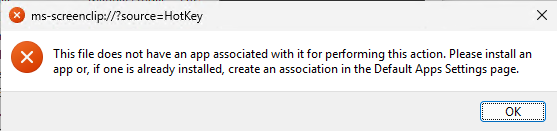
An example of this is not being able to open Snipping Tool because it has been uninstalled by the Uninstall AppX Apps action:
User Accounts
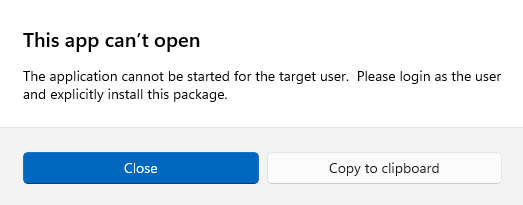
If the tool is run on a machine with both a user account and an admin account issues may happen when using the default configuration.
The following may appear while trying to launch an AppX app. This can be resolved by leaving the ClipSvc and AppXSvc services enabled.
Using the Disable UAC action may also cause issues in this scenario, as you will be unable to run anything as administrator from the user account.
Actions
Disable Windows Defender
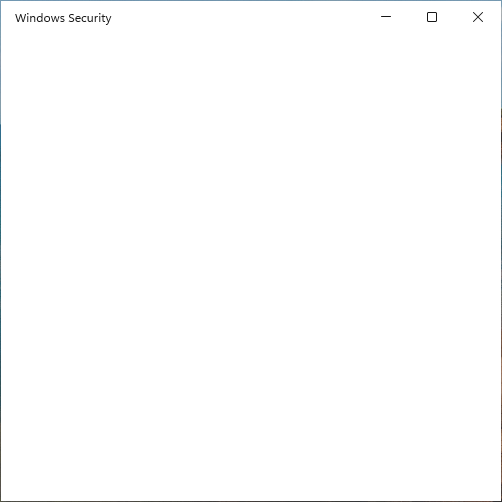
The disable windows defender action will leave Windows Security Settings in an inaccessible state, this change cannot be reverted through the tool. If you would like to check that the action has disabled Defender successfully this should be checked via Task Manager after a reboot.
Enable .NET 3.5
This action can take a long time to complete, unfortunately this is native behaviour and this cannot be fixed.
Packaging Tool Issues
If the problem is happening within the tool, troubleshooting can be done by inspecting the output as the tool is running, or by inspecting the packaging_tool.log file.
There are some actions which are likely to be broken by future Windows updates, especially the Disable Defender action.