
Overview
If the AppsAnywhere appliance must use a proxy server to obtain outbound internet access, details of the proxy server address required can be defined.
These proxy server details will be used for all Appliance functions such as the System update (YUM) process.
Customer access to the appliance is only available via the hypervisor console (e.g. via vSphere or Hyper-V).
If the traffic between AppsAnywhere and Analytics is being proxied see the Using a Proxy with Analytics section.
The Configure Proxy Settings section of the ACC allows view and define the required proxy server details.
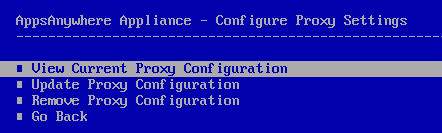
The following options are documented below:
View Current Proxy Configuration
The View Current Proxy Configuration option displays the current HTTP, HTTPS and Proxy Exclusions that have been defined.
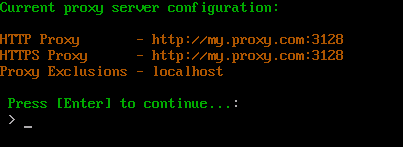
Press Enter to return to the ACC.
Update Proxy Configuration
The Update Proxy Configuraiton option allows you to define the required HTTP, HTTPS and Proxy exclusions the AppsAnywhere appliance should use.

Enter the HTTP proxy server address and press Enter to continue.

Enter Y and Enter to confirm the address specified to continue. Press n and Enter to change the address. Otherwise enter q and Enter to cancel this process.
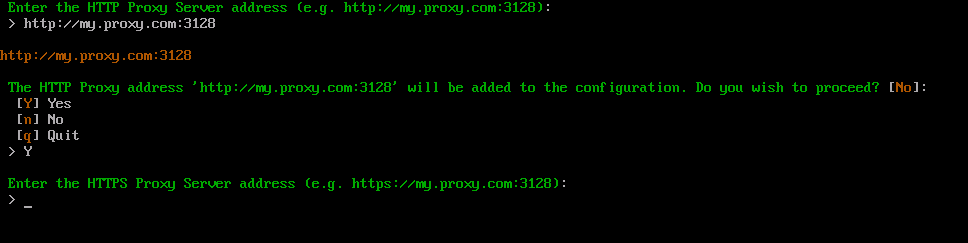
Enter the HTTPS proxy server address and press Enter to continue.
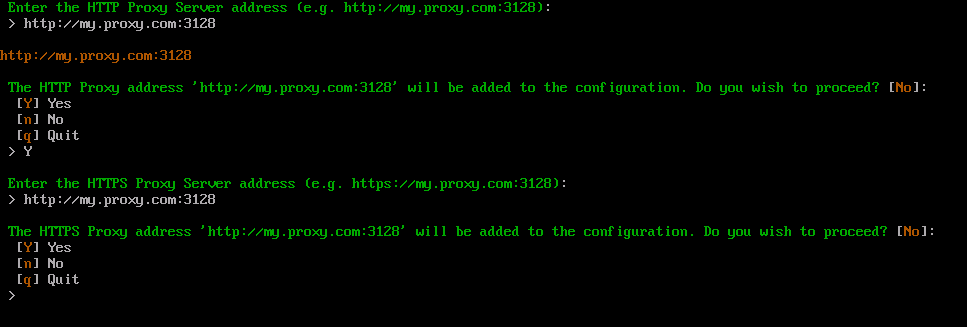
Press Y and Enter to confirm the address specified to continue. Press n and Enter to change the address. Otherwise enter q and Enter to cancel this process.
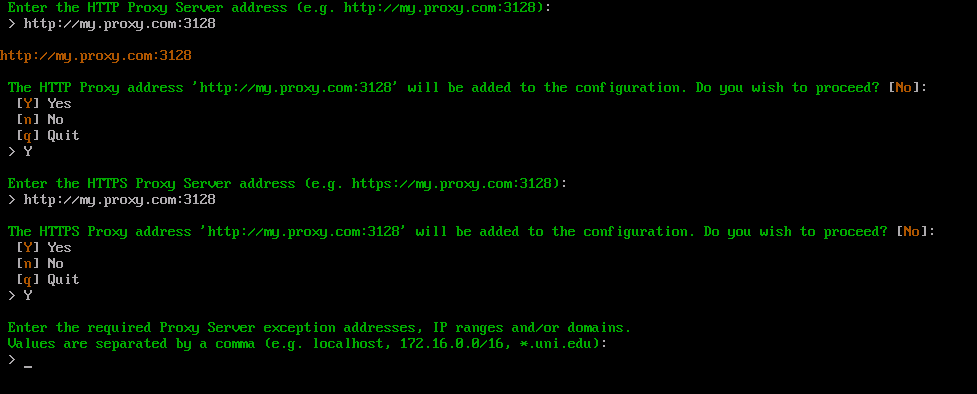
Specify any IP address, IP ranges, FQDN and/or domain proxy server exceptions. Each value is separated by a comma. Press Enter to continue.
Please note that at least one value must be specified. If no specific exceptions are necessary simply enter localhost as a default value.
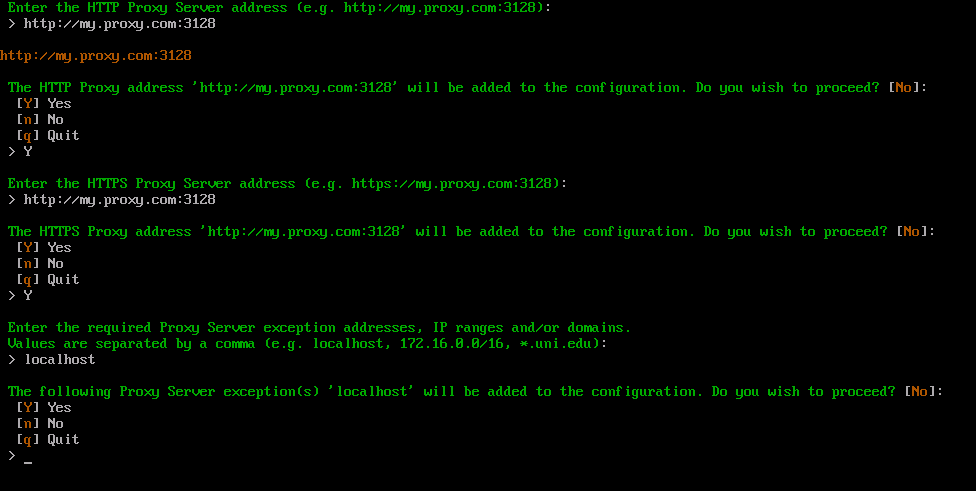
Press Y and Enter to confirm the exceptions specified to continue. Press n and Enter to change the address. Otherwise enter q and Enter to cancel this process.
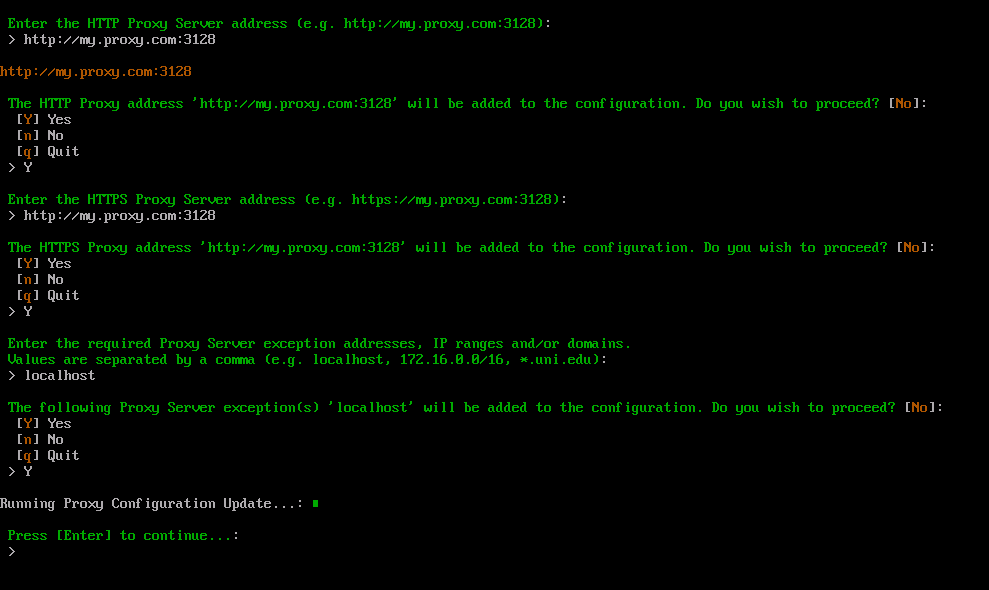
Press Enter to return to the ACC.
Remove Proxy Configuration
The Remove Proxy Configuration option will remove any previously defined proxy server configuration from the system.
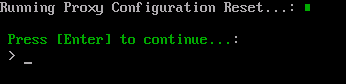
Press Enter to return to the ACC.
Using a Proxy with Analytics
AppsAnywhere communicates with the Analytics API using encrypted HTTPS traffic on a non-standard HTTPS Tport 19999.
Scenario 1: AppsAnywhere servers need to connect to the Analytics server via a proxy
Some proxy applications/servers (for example Squid) will, by default block anyone from making an unfiltered tunnel to a non-standard HTTPS port, essentially blocking traffic to the Analytics API. This results in Analytics data becoming unavailable to AppsAnywhere.
To ensure Analytics traffic is not blocked by the proxy, you must ensure that the proxy is configured to allow HTTPS connections to port 19999.
A Squid configuration snippet is shown below detailing how to register port 19999 as an SSL_Port so that HTTPS traffic sent to it is not blocked.
# file: /etc/squid/squid.conf
acl SSL_ports port 19999
Scenario 2: AppsAnywhere servers need to connect to the Analytics server directly (bypassing the proxy)
If the proxy is simply for external traffic and you want the AppsAnywhere servers and Analytics server to communicate directly, a proxy exclusion for Analytics must be added to the AppsAnywhere servers' proxy exclusions list to prevent this traffic from being sent via the proxy (and potentially being blocked).
We recommend adding the exact Analytics domain and port to be used in the Analytics config to the proxy exclusions list, as in the example below.
myanalytics.com:19999
Current Proxy server configuration:

HTTP Proxy       - http://myproxy.com:3128
HTTPS Proxy      - http://myproxy.com:3128
Proxy Exclusions - localhost, myanalytics.com:19999