
Prerequisites
-
At least one course must be created within the LMS
-
The accounts the administrators/students are using should be configured with SIS IDs containing their LDAP directory or SAML usernames
-
The LDAP directory used for lookup is taken from the Embed configured in AppsAnywhere
-
The corresponding directory user must also been given access to AppsAnywhere.
-
Creating the embed in AppsAnywhere
To ensure you have the details required for the Brightspace configuration you must first create the embed entry in AppsAnywhere.
-
Log in to your AppsAnywhere instance as administrator and visit the admin pages
-
Click Connectors → Embeds
-
Click Add embed
-
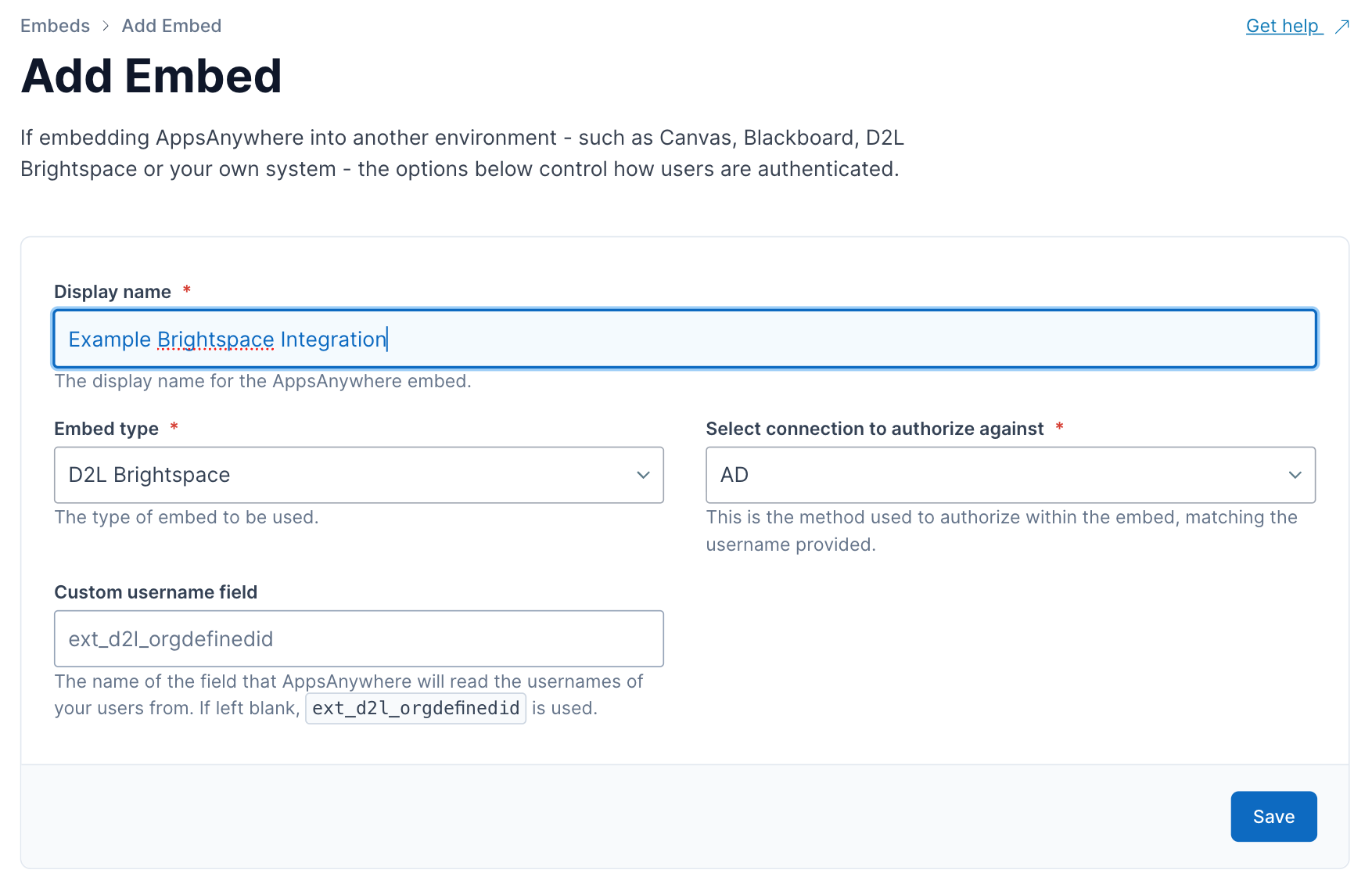
Create the embed record ensuring;
-
Embed type is set to D2L Brightspace,
-
The Select connection to authorize against references the expected authorization connection
-
A Custom username field is defined where required (a sensible default will be used if not)
-
-
Press Save
-
You will be redirect to the Embeds page and details of the newly created embed will now be visible. The Consumer Key and Consumer Secret will be used when connecting AppsAnywhere to your Brightspace instance.
Connecting Brightspace to AppsAnywhere
The section below will guide you through the process of connecting AppsAnywhere to your Brightspace instance.
Adding AppsAnywhere as a Brightspace Tool Provider
To link AppsAnywhere and Brightspace, AppsAnywhere must be configured as a Tool Provider.
-
Log in to Brightspace as an administrator
-
Click the External Learning Tools links in the settings menu
-
Click the Manage Tool Providers (Legacy) tab on the External Learning Tools Page
-
Click the New Tool Provider button
-
Create the Tool Provider ensuring;
-
Launch point is defined as
<domain>/lti/application/embed.-
Replacing
<domain>with the AppsAnywhere Base URL as configured in AppsAnywhere’s general settings page. For examplehttps://myappsanywhere.com/lti/application/embed. -
Noting that, if Brightspace is configured on a different domain to your AppsAnywhere instance, there are known issues when using either Firefox or Safari
-
-
Version is set to
1.1(explicitly or via Inherit Global assuming 1.1 is globally configured version) -
OAuth Signature Method is set to
HMAC-SHA1 -
Secret is set to the Consumer Secret of the previously created embed record in AppsAnywhere
-
Use custom tool consumer information instead of default is check (allowing us to enter the Key etc.)
-
Key is set to the Consumer Key of the previously created embed record in AppsAnywhere
-
Security Settings has the below options checked
-
Send tool consumer information to tool provider
-
Send context information to tool provider
-
Send LTI user ID and LTI role list to tool provider
-
Send system Org Defined ID to tool provider
-
-
Make tool provider available to has been configured depending on your organisation structure so that this tool provider is available to course you expect.
-
All fields not explicitly mentioned can use the default value or values specific to your Brightspace instance.
-
-
Press Save and Close
Creating a Brightspace Tool Link
To embed AppsAnywhere within your Brightspace courses you must configure a Tool Link.
-
Log in to Brightspace as an administrator
-
Click the External Learning Tools links in the settings menu
-
Click the Manage Tool Links (Legacy) tab on the External Learning Tools Page
-
Click New Link
-
Create the Tool Link ensuring;
-
Title is defined. This will be the name of the tool as it appears on a course. (For example, AppsAnywhere)
-
URL is set to the same value as the Launch Point when configuring the Tool Provider
-
Key/Secret settings have the below options checked
-
Sign messages with key/secret with
-
Tool consumer key/secret
-
-
Security Settings has the below options checked
-
Use tool provider security settings
-
-
Make link available to has been configured depending on your organisation structure so that this tool provider is available to course you expect.
-
All fields not explicitly mentioned can use the default value or values specific to your Brightspace instance.
-
-
Press Save and Close
Embedding AppsAnywhere in a Brightspace course
Once an AppsAnywhere Provider Tool and Provider Link have been configured, AppsAnywhere can be added to a Brightspace course as content.
-
Log in to Brightspace as an administrator
-
Open the Course you want to add AppsAnywhere to
-
Click the Content menu link
-
Click Add Existing
-
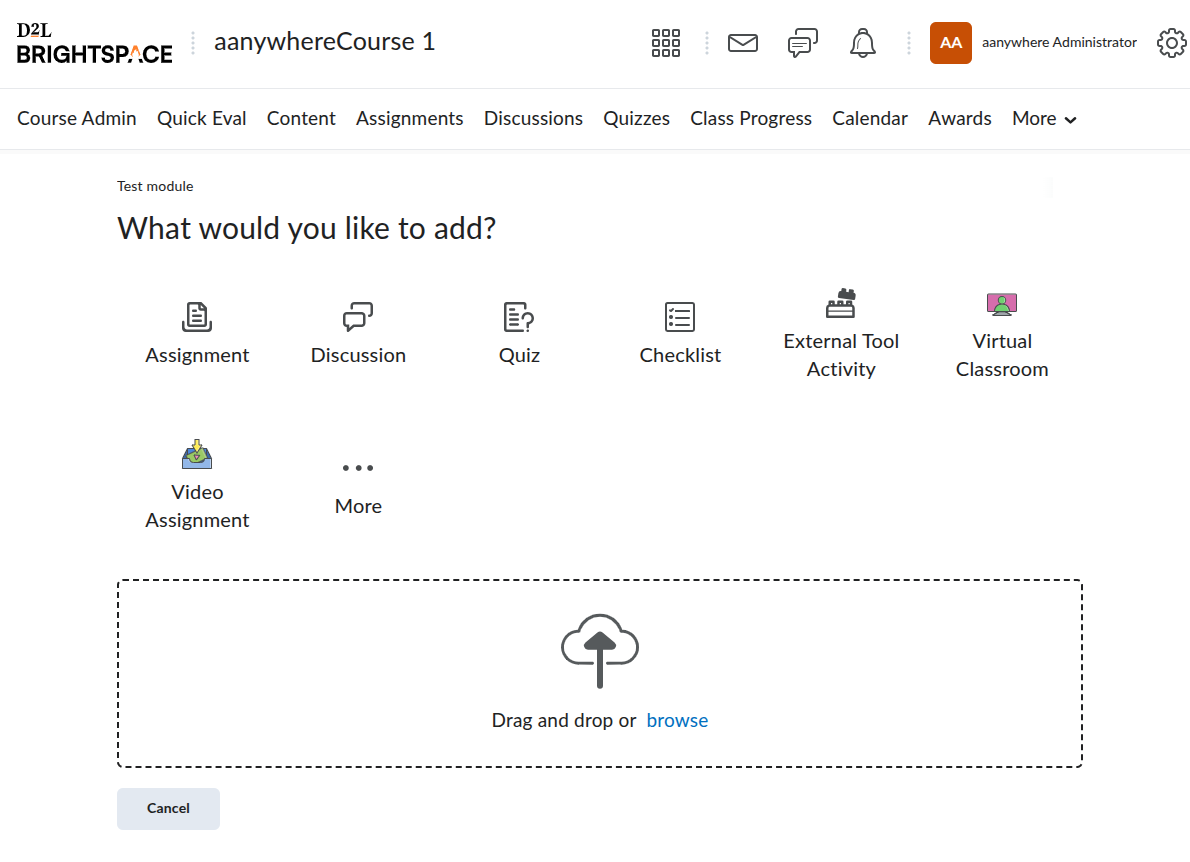
Click External Tool Activity
-
Select the LTI Link from the displayed table (by clicking its name) to add it to the Course
Configuring Brightspace course App Lists
Once AppsAnywhere has been added to a course, the App List for that course can be configured, making those Apps available to course users.
For further documentation on configuring App Lists please view the article App List Administration.