
It is recommended to configure SAML 2.0 Single Sign On rather than Kerberos. SAML is compatible with all device types and reduces the need to manage multiple SSO methods.
Overview
As the AppsAnywhere appliance is Linux based, additional configuration is required in order to support Kerberos SSO (Single Sign-On) within AppsAnywhere.
SPN records must be created for the AppsAnywhere service user account before defining the SSO configuration within the ACC.
Please see Directory Requirements for more details on how to configure the required SPN records.
The Configure Single Sign-On section of the AAC allows you to configure the required settings for your AppsAnywhere appliance to support SSO:
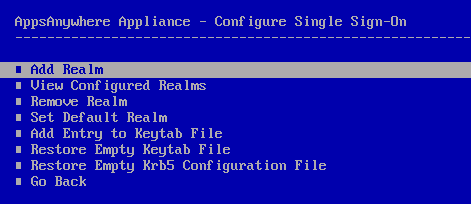
Add Realm
The Add Realm option allows you to enter Kerberos realm information that will be used by the appliance:

Type the Kerberos realm name (Active Directory DNS name). E.g. ad.example.com

Type Y and press Enter to confirm this action. If the value entered is incorrect, type n and press Enter to retype the value. Otherwise type q and press Enter to cancel this process.
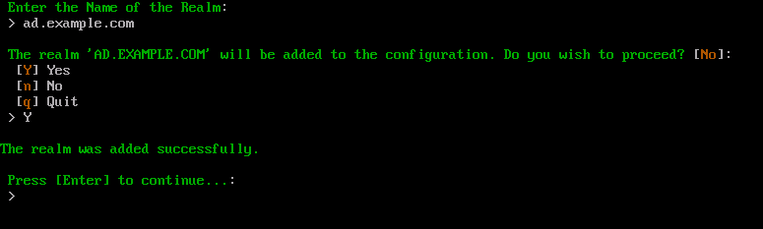
Once the realm has been added successfully, press Enter to return to the ACC menu.
At least one Kerberos realm must be added in order for the SSO to function correctly.
View Configured Realms
The View Configured Realms option will display the current Kerberos realms that have been defined along with the current default realm.
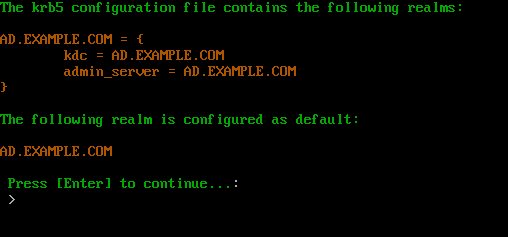
Once this process is complete press Enter to return to the ACC.
Remove Realm
The Remove Realm option allows you to delete a Kerberos realm that was previously added.
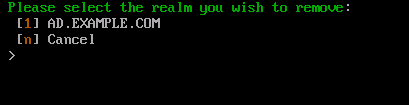
A list of currently known Kerberos realms will be displayed. Type the corresponding number to the realm you want to remove and press Enter.
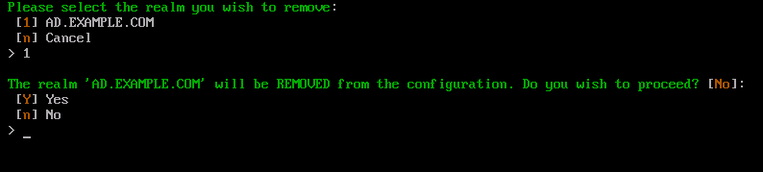
Type Y and press Enter to confirm this action. Otherwise type n and press Enter to cancel this process.
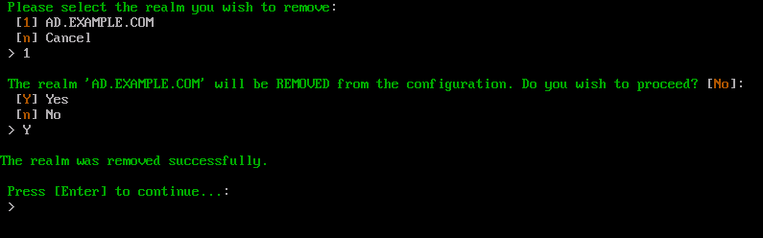
Once this process is complete, press Enter to return to the ACC.
Set Default Realm
The Set Default Realm option allows you to set a previously entered Kerberos realm as the default.

A list of currently known Kerberos realms will be displayed. Type the corresponding number of the realm you want to set as the default and press Enter.
The current default realm is displayed in brackets at the end of the instruction line.
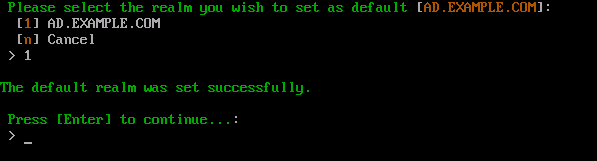
Once this process is complete, press Enter to return to the ACC.
Add Entry to Keytab File
The Add Entry to Keytab File option allows you to populate the local Kerberos keytab file with the relevant AppsAnywhere service user account details.
You must first add the correct Kerberos Realm details as above before continuing with this process.
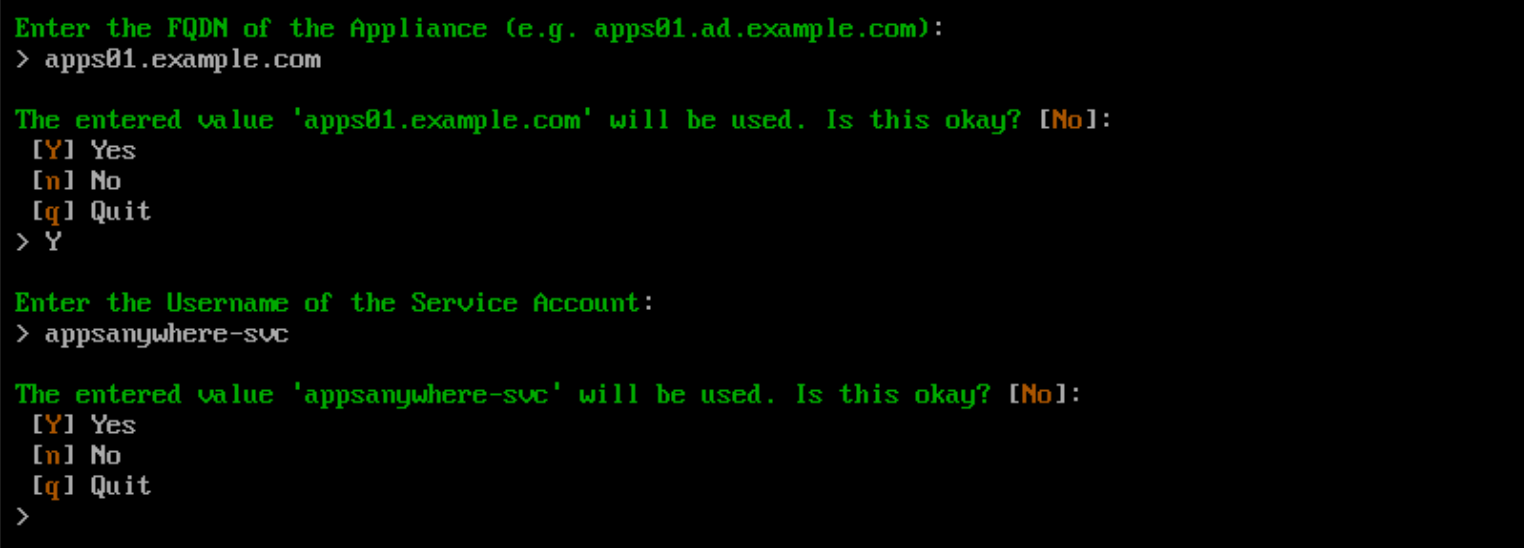
First type the fully qualified domain name of the AppsAnywhere appliance and press Enter. E.g apps01.example.com
Type Y and press Enter to confirm this action. If the value entered is incorrect, types n and press Enter to retype the value. Otherwise type q and press Enter to cancel the process.

Enter the samAccountName (username) of the AppsAnywhere service user account and press Enter.
Type Y and press Enter to confirm this action. If the value entered is incorrect, type n and press Enter to retype the value. Otherwise type q and press Enter to cancel the process.
Type the AppsAnywhere service user account password and press Enter.
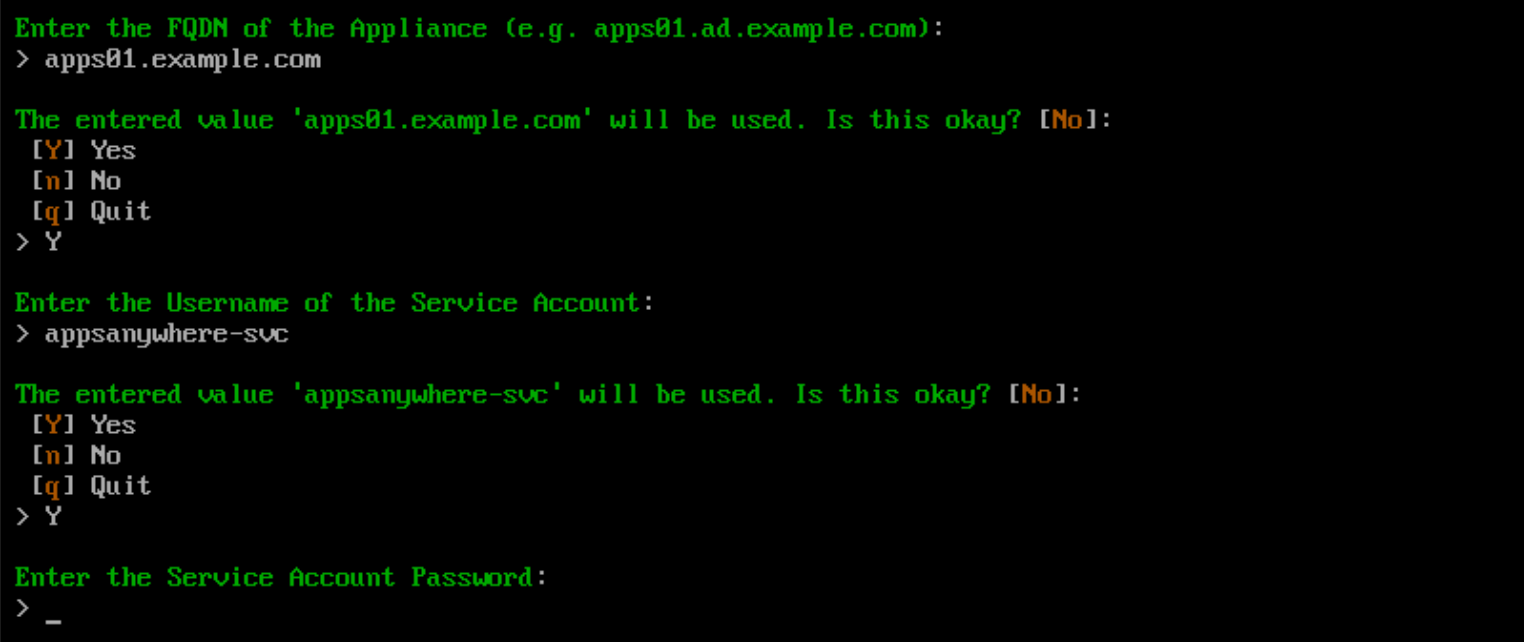
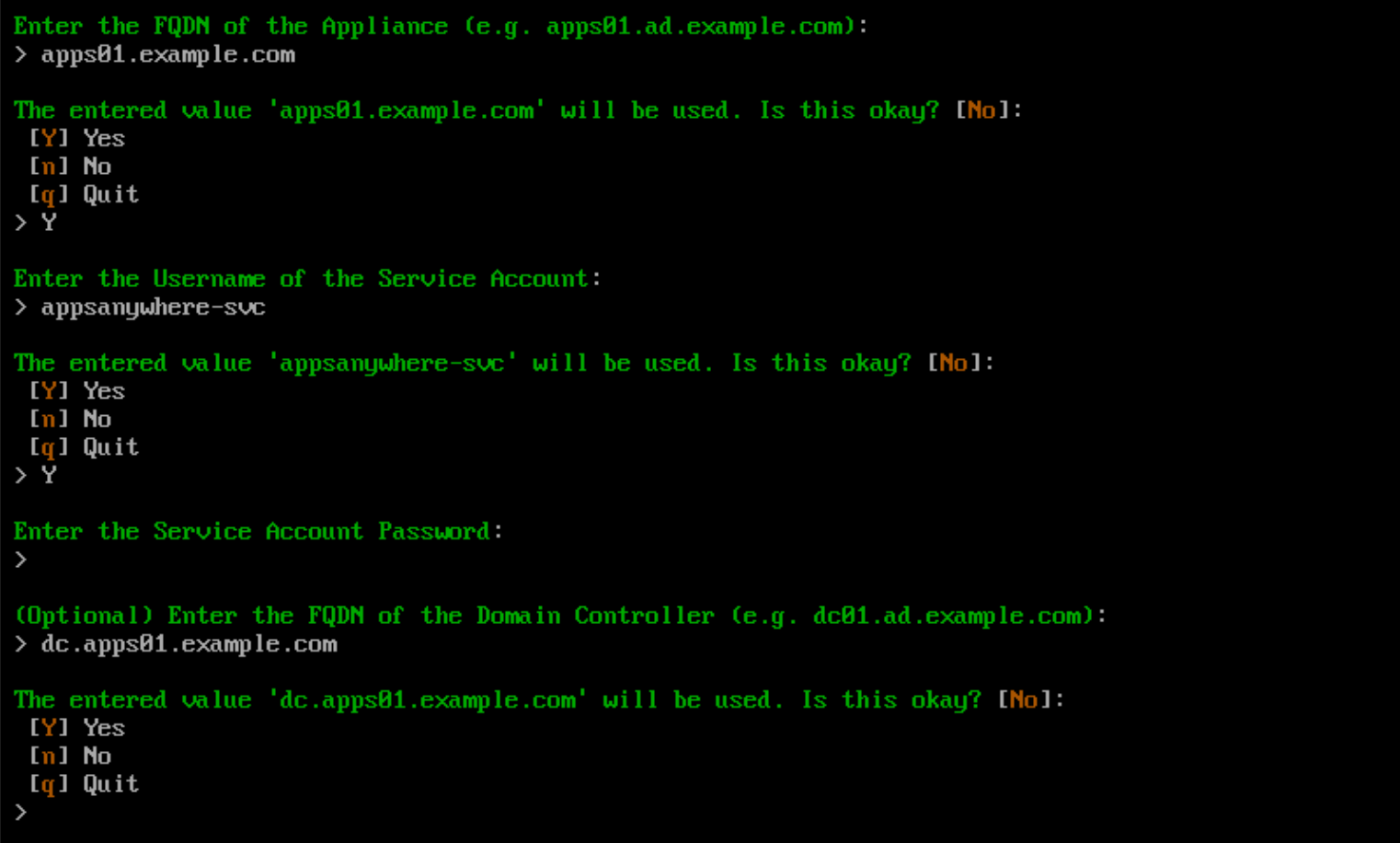
Add an optional Domain Controller FQDN and press Enter. Alternatively, where a custom Domain Controller FQDN is not required leave the input blank and press Enter.
Type Y and press Enter to confirm this action. If the value entered is incorrect, type n and press Enter to retype the value. Otherwise type q and press Enter to cancel the process.
Type Y and press Enter to confirm this action. Otherwise type n and press Enter to cancel this process.
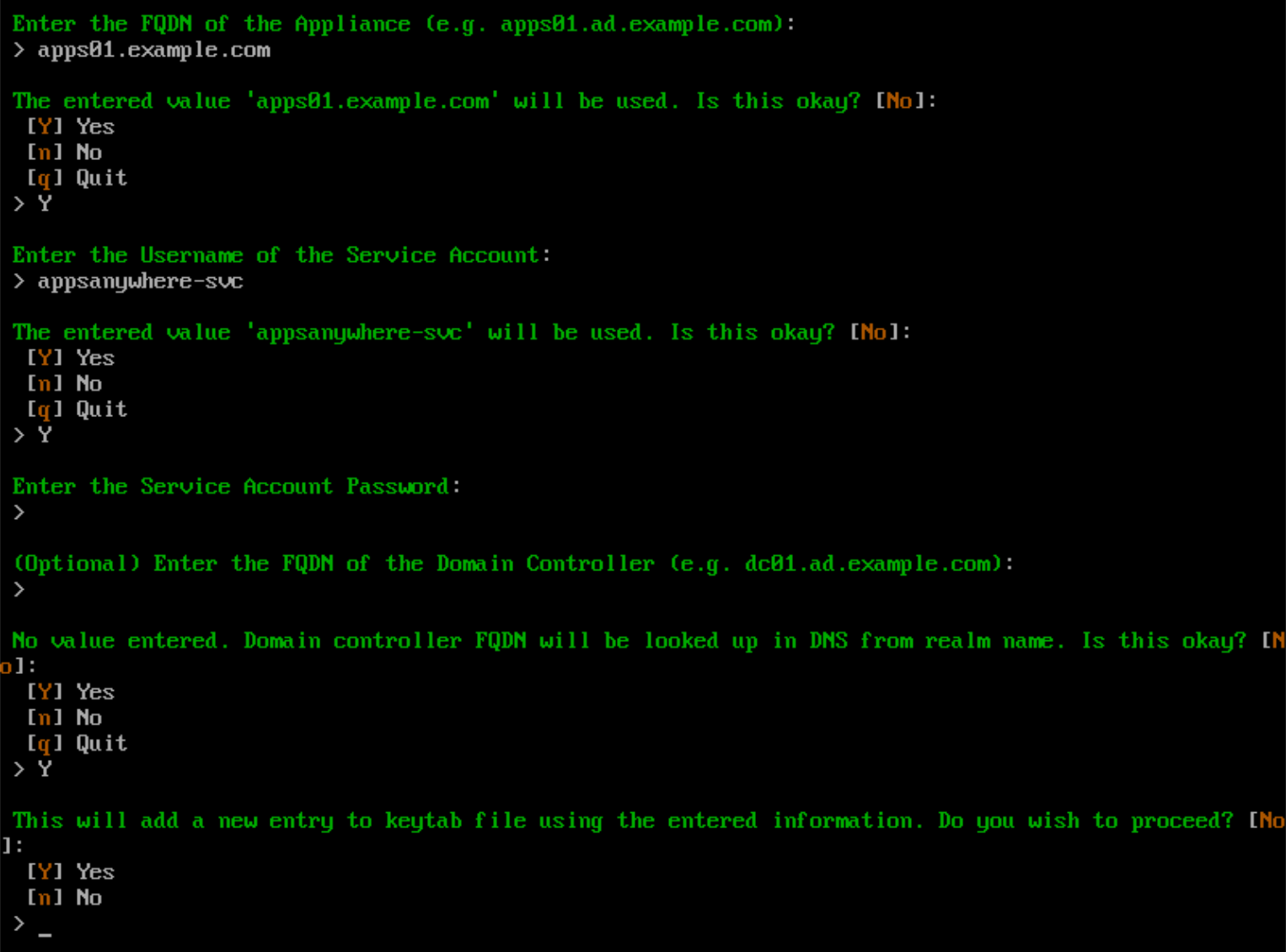
Once this process is complete, press Enter to return to the ACC.
If an error is returned please retry the process again ensuring the details provided are correct, in particular the AppsAnywhere service username and password.
If the issue still occurs please verify that the correct Kerberos realm information has been added and the default Kerberos realm set.
The error messages returned are descriptive so will help to determine the cause of the issue.
If you are unable to resolve the issue please contact AppsAnywhere Support providing the error message received.
Restore Empty Keytab File
The Kerberos Keytab file contains pairs of Kerberos principals and encrypted keys (which are derived from the Kerberos password).
The Restore Empty Keytab File option will remove all current entries from the Kerberos Keytab file and restore the default empty file.
This option can be used if for some reason the Keytab file becomes corrupt or you wish to remove unwanted, invalid entries.

Type Y and press Enter to confirm this action. Otherwise type n and press Enter to cancel this process.
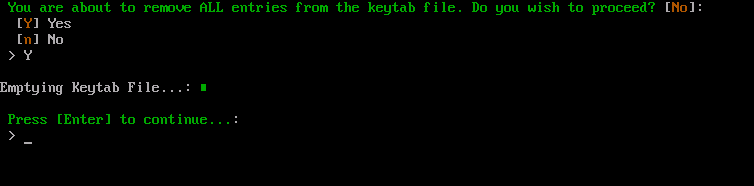
Once this process is complete, press Enter to return to the ACC.
Restore Empty Krb5 Configuration File
The Krb5 configuration file stores all of the defined realm information.
The Restore Empty Krb5 Configuration File option will remove all current entries from the Kerberos Krb5 configuration file and restore the default empty file.
This option can be used if for some reason the Krb5 file becomes corrupt.

Type Y and press Enter to confirm this action. Otherwise type n and press Enter to cancel this process.

Once this process is complete, press Enter to return to the ACC.
AppsAnywhere server will never hold or request Kerberos tickets on behalf of the user. The client device and web browser request to obtain the ticket from the KDC (Key Distribution Center) / Domain Controller.
Once this ticket is obtained the browser will pass this to the AppsAnywhere server. The server will then use the information stored within the keytab to decrypt this ticket. If this ticket is deemed valid the user is authenticated.