
Once you have created a provision, you may wish to view the details of the provision. You can view these details by navigating to the provision table.
-
Log into AppsAnywhere as an admin user
-
Click on Return to Admin to access the AppsAnywhere admin portal
-
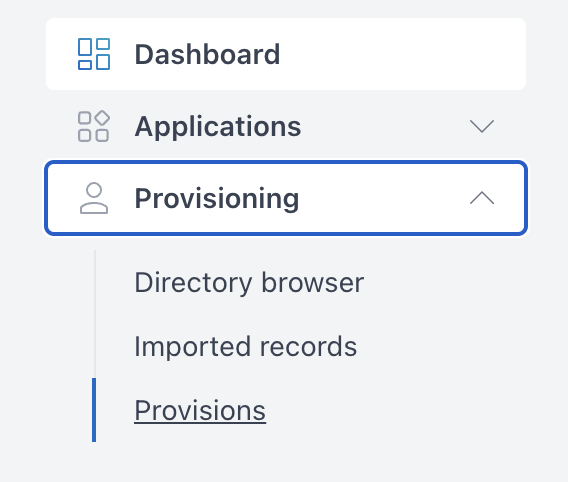
On the navigation menu at the top of the page, go to Provisions > Provisions
You can use the search box in the top right of the table to quickly find a provision.
From this page you can:
-
Click the + Add Provision button in the top right to create a new provision - see Creating a provision
-
Click the Edit button next to a provision to modify the details of that provision - see Editing a provision
-
Click the Delete button next to a provision to delete that provision
-
Click the Suspend button next to a provision to suspend that provision - see Suspending a provision
Suspending a provision may result in some users losing access to applications.
Columns
A description of each column in the table containing the list of provisions is given below.
.png?cb=11f106188fb3b3e1f03e6342e9eb9b98)
|
Name |
Description |
|---|---|
|
Display name |
A friendly name for the provision to identify the provision. |
|
Apps |
The number of apps which are included in this provision. |
|
Desktop |
The number of desktops which are included in this provision. |
|
Expiration date |
The expiration date of the provision, the provision will no longer take effect after this date. |
|
Device ownership |
The ownership of the devices which this provision includes. |
|
On domain |
Whether the provision is restricted to devices which are on the domain. |
|
On site |
Whether the provision is restricted to devices which are on site. |
|
State |
Whether the provision is active or suspended. |